Manage Your WordPress Plugins
Install, update, activate, and configure WordPress plugins. Handle conflicts when they arise.
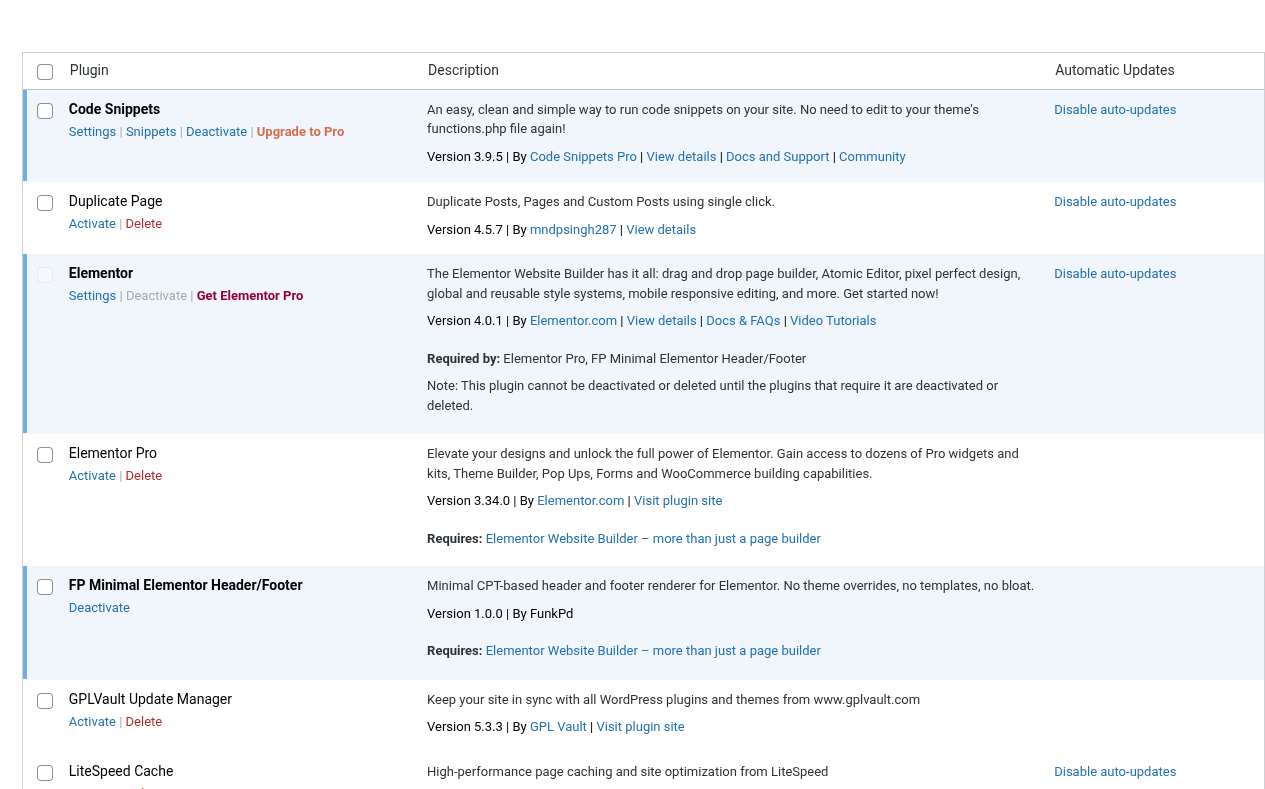
Procedure
Install a plugin
1. Go to Plugins > Add New
2. Search for the plugin
3. Click Install Now, then Activate
Update plugins
1. Go to Plugins > Installed Plugins
2. Plugins with updates show a notification link
3. Click Update Now for each
Activate / Deactivate
1. Go to Plugins > Installed Plugins
2. Click Activate or Deactivate below the plugin name
Configure settings
1. Find the plugin menu (usually under its own item or Settings)
2. Adjust settings and click Save Changes
Fix plugin conflicts
1. Deactivate all plugins except one
2. Reactivate each one, testing after each
3. Identify the conflict and adjust settings or contact support
Key Points
- Keep plugins updated
- Use trusted plugins only
- Use bulk actions to update multiple plugins
- Remove unused plugins regularly
- Too many plugins slow the site and increase security risk
tl;dr
Install from Add New. Update from Installed Plugins. Deactivate to troubleshoot. Delete what you don't use.